
How do you use the "New Window" feature in Excel? The New Window may be common knowledge for some business professionals, but it wasn't to me. I often use applications and don't fully understand its capabilities, and don't take the time to explore the tool properly. I discovered this button out of need.
What's the "New Window" button used for?
Imagine you are working on a large spreadsheet with multiple sheets, and you need to reference data from one sheet while working on another. Switching back and forth between sheets takes a while and it's a bit of a hassle. It's especially bad when you are building a formula that references two different tabs. The 'New Window' feature eliminates this frustration by allowing you to view two sheets from the same workbook simultaneously.
Once I found it, I started using it daily. Furthermore, I thought I was the last person to know this existed, but I constantly see my team members struggling with the same issue. Every person I've shown this button to was shocked and delighted.
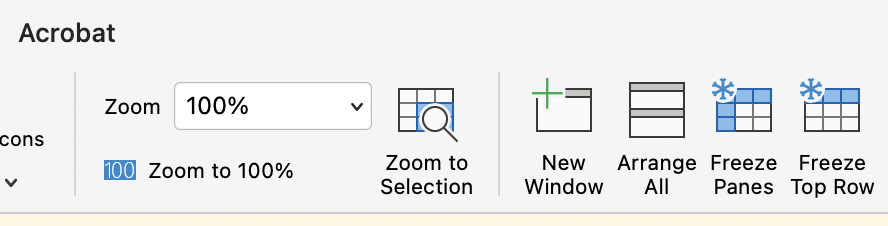
Step-by-Step Guide to Using the 'New Window' Feature in Excel
Using the 'New Window' feature in Excel is straightforward:
- Open the Excel workbook you are working on.
- Navigate to the 'View' tab on the ribbon.
- Click on the 'New Window' button. This action will open a duplicate window of your current workbook.
- To arrange the windows, go back to the 'View' tab and click on 'Arrange All'. You can choose from several layout options like Tiled, Horizontal, Vertical, or Cascade.
What is the "New Window" feature good for?
The 'New Window' feature offers several advantages that can significantly enhance your productivity:
- Enhanced Data Comparison: With two windows open, you can easily compare data from different sheets or sections of the same sheet without losing your place.
- Efficient Copying and Pasting: Copying and pasting data between sheets becomes more straightforward, as you can drag and drop data between the two windows.
- Improved Accuracy: By reducing the need to switch back and forth between sheets, you minimize the risk of errors, making your work more accurate and reliable.
- Running VLOOKUPs and Other Formulas: When working with functions like VLOOKUP, having two windows open allows you to easily reference data from another sheet, making the process more efficient.
- Financial Modeling: Financial analysts often deal with large, complex models that require referencing multiple sheets. The 'New Window' feature makes it easier to manage these models by providing simultaneous views.
- Data Validation: Quality assurance tasks, such as data validation, benefit immensely from having two windows open, as you can cross-check data more effectively.
Hope you find this helpful!
Written by Ronnie Hay, Vice President of Marketing, UBEO Business Services